
Security
How to Set Up 2FA on MyLiquidBot Without Getting Locked Out
You linked your exchange accounts to MyLiquidBot for trading only, so a stranger signing in as you might not sound like much of a threat. But that stranger could still open orders on those exchanges with your funds. Right now, your password, Google account or wallet is all it takes to sign in as you.
Two-factor authentication (2FA) adds a one-time code to signing in, which a stolen password can't supply. Here's how to turn it on, and how to keep access to your MyLiquidBot account if you lose your phone.
What is two-factor authentication (2FA)?
Two-factor authentication (2FA) is a sign-in security method that asks for two different kinds of proof that you're the account owner. The first factor is something you know, such as your password. The second is something only you have, such as an authenticator app on your phone or your Telegram or email account, which produces or receives each one-time 2FA code. Because a stolen password covers only the first factor, it isn't enough to sign in on its own.
Which 2FA method should you choose?
Choose an authenticator app if you can. MyLiquidBot rates it the strongest 2FA method, and it works offline because the app on your phone generates each 2FA code itself.
The other option is delivery 2FA, where MyLiquidBot sends each 2FA code to you by Telegram or email. It suits you if you'd rather not install another app, but signing in then depends on reaching that Telegram or email account. Telegram delivery works only once you've linked the MyLiquidBot Telegram bot.
How to link the MyLiquidBot Telegram bot for 2FA codes
You only need the MyLiquidBot Telegram bot for 2FA if you want 2FA codes by Telegram, though it also sends alerts and lets you check your balances and positions from the chat. It links to your MyLiquidBot account through a one-time link it sends you in the chat:
- Start the chat: go to Account → Telegram, message @myliquid_support_bot and send it /login.
- Open the Telegram login link: when the bot replies with it, open it in the browser where you're signed in to MyLiquidBot.

A Telegram login link expires after 15 minutes and works a single time, so don't forward it. If yours expires, send /login again for a new one. Only one Telegram account can be linked per user, so if your Telegram account is already tied to a different MyLiquidBot account, unlink it there first.
How to turn on 2FA in your MyLiquidBot account
You turn on 2FA from the security settings of your MyLiquidBot account, and setup ends with recovery codes that let you sign in if you ever lose access to your 2FA method:
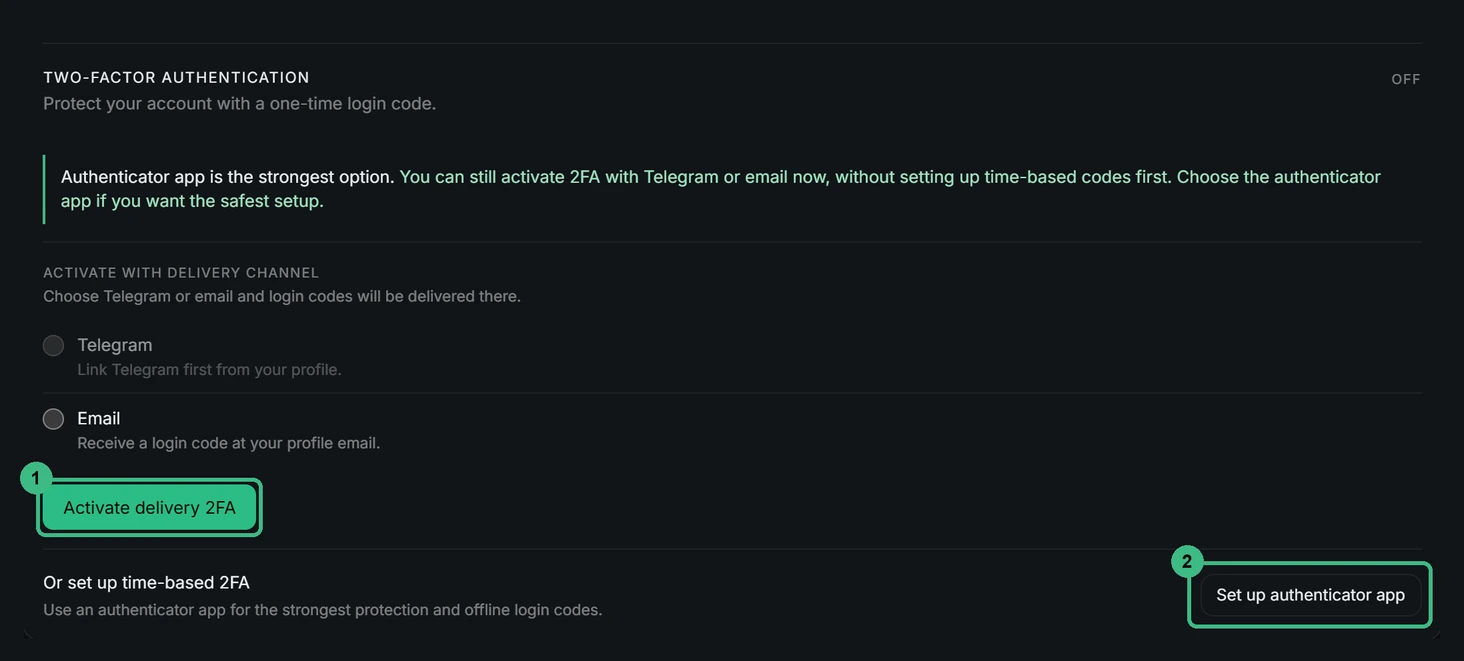
- Choose the 2FA method: go to Account → Security → Two-factor authentication, then select "Set up authenticator app", or "Activate delivery 2FA" for codes by Telegram or email.
- Confirm the authenticator app: reveal the QR code or setup key, scan or type it into the app, then enter the first 2FA code it shows in "Confirm 2FA".
- Save your recovery codes: each one works once, for when you can't use your 2FA method. Keep them offline, out of every chat and every screenshot.
How to sign in to MyLiquidBot with 2FA
Sign in with your email and password, Google or crypto wallet as before, then type the current 2FA code from whichever method you chose: authenticator app, Telegram or email. If you can't use your 2FA method, enter a recovery code instead.
What should you do if you lose your 2FA device?
Sign in with one of your recovery codes, then set up 2FA again on the new device. If you have no recovery codes left, contact MyLiquidBot support from your profile email.
A lost wallet is a separate risk from a lost 2FA device: if you can't use your wallet, a second sign-in method still lets you into your MyLiquidBot account. If you registered with only a crypto wallet, "Add email and password" in Account gives you another way to sign in, and the Wallet login section lets you add Google or more wallets. If you signed up with email, verify the address: trading doesn't require it, but it helps you recover access.
Will MyLiquidBot ever ask for your 2FA code?
MyLiquidBot support, the built-in Trading Agent and the Telegram bot will never ask for your password or a 2FA code. Nobody needs them, so refuse any request for one, whoever it seems to come from. So keep 2FA codes and recovery codes out of every chat, including AI assistants and MyLiquidBot's support group on Telegram, and hide them in any screenshot you share.
FAQs about 2FA on MyLiquidBot
Do I need 2FA if my API keys can't withdraw funds?
Yes. 2FA protects the MyLiquidBot account that controls your trading connections, and anyone who controls that account can create orders with them even without withdrawal permissions.
Does MyLiquidBot hold my funds?
No. Your funds stay on the exchange, and with trading-only credentials MyLiquidBot can place and cancel orders but can't send your funds to another address.
Which email address gets my 2FA codes?
The email address on your MyLiquidBot profile. If you choose email for delivery 2FA, each login code is sent there.
What if I forget my MyLiquidBot password?
If you signed up with email, use "Forgot your password?" to reset it. If you sign in with a crypto wallet, unlock the wallet, check that the right account is selected and try again.