
Bots
Copy a Leaderboard Bot on MyLiquidBot: What You Really Get
A bot that has run for months with a return you'd happily take looks like a shortcut: one click and its settings become the starting point for a bot of your own. What arrives is only the settings. The other trader's open position, orders and track record stay behind, and amounts chosen for their balance can commit far more of yours than you planned.
Here's how to read a bot's results before you pick one, what a copy actually carries over, and how to turn a copied setup into a bot sized for your own balance.
What does the MyLiquidBot Leaderboard show?
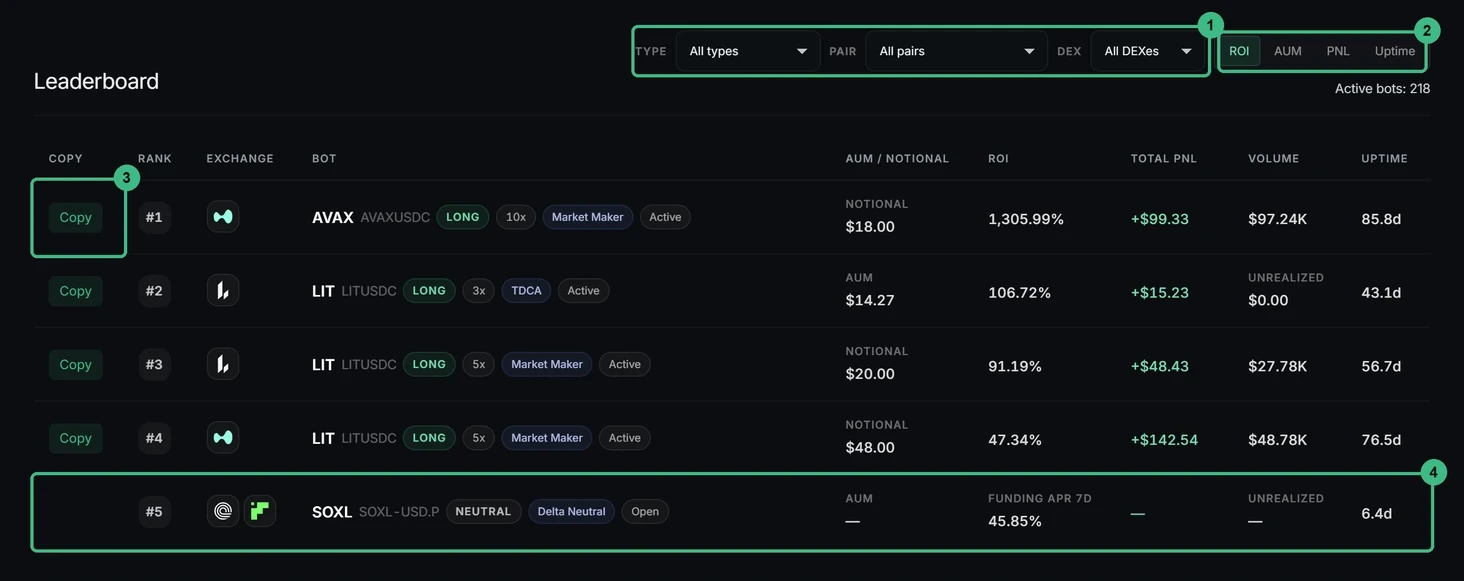
The MyLiquidBot Leaderboard is a public table of bots that other users are running right now, with their statistics side by side so you can compare strategies. You can open the Leaderboard without signing in; a MyLiquidBot account only becomes necessary when you connect an exchange or place orders.
Each Leaderboard row describes a bot, not a person. It shows the exchange, the pair, the direction (long, short or neutral), the leverage, the bot type and its status, followed by its results, but never the owner's name, email or wallet.
Still, two limits decide how much those results can tell you. The Leaderboard lists active bots only and isn't a complete history, so bots that have already been stopped aren't there to compare against. And a bot's results so far don't guarantee what it will do next.
How should you read ROI, PnL, AUM and uptime on the Leaderboard?
Read a bot's ROI together with its total PnL, because the highest percentage isn't always the most money. ROI is the return on the bot's own capital, so a large percentage on a small bot can be a small amount of money. Two Market Maker bots on the MyLiquidBot Leaderboard show the gap: the bot ranked #1, trading AVAX, shows a 1,304.86% ROI and +$99.24 of total PnL, while the bot ranked #24, trading LIT, shows 20.23% and +$597.62. Rankings and figures change as bots keep trading, so check the live Leaderboard for the latest values.
The Leaderboard columns measure different things, so check which column a figure comes from before you compare bots:
- ROI: the return on the bot's capital, as a percentage.
- Total PnL: the bot's result in dollars. For bots holding a position, the row can also show the unrealized part, the share of the result that depends on a position that hasn't closed yet.
- AUM / Notional: AUM is the capital configured in the bot, not the value of its leveraged position. Market Maker bots show notional instead.
- Uptime: how many days the bot has been running.

That's why the fairest comparison is between bots of similar size running the same strategy. A Market Maker bot's notional and a TDCA bot's AUM aren't the same measure, so ranking those two bots against each other by size mixes two different figures.
How to narrow the Leaderboard with filters and sorting
Filter the MyLiquidBot Leaderboard down to one bot type, one pair and one DEX before you sort it. That leaves you comparing bots that follow the same logic on the same market, which is the comparison ROI and PnL can actually support. Pick a DEX where you already have an exchange connection, so every bot left on the shortlist runs on an exchange you're already connected to.
Sorting then orders that shortlist by ROI, AUM, PnL or uptime. Sorting by ROI shows which bots did best relative to their capital, and sorting by uptime brings the longest-running ones to the top.
Even then, not every row offers a copy. Delta Neutral rows, for example, show a 7-day funding APR where other bots show ROI, and they have no Copy button.
What does copying a bot setup include, and what isn't copied?
Copying a bot setup gives you a filled-in copy of the other bot's settings, not a live link to the other user's bot. A copy hands you the settings to review and nothing else.
| Part of the original bot | Comes with the copy? | What it means for you |
|---|---|---|
| Bot settings | Yes | The original bot's amounts, leverage and order settings arrive filled in for you to review and adjust to your own balance. |
| Open position and orders of the original bot | No | Your bot opens its own position and places its own orders once you create it. |
| Results of the original bot | No | Your bot's ROI and PnL come only from its own trades. |
| Changes the owner makes later | No | Your bot keeps the settings you saved. |
| Retired Market Maker V2 presets | Yes, when the original bot uses one | Some Market Maker V2 presets that MyLiquidBot no longer offers for new bots still arrive with a copy. |
That's the difference between copying a setup and mirroring trades. A copied bot doesn't repeat the other user's fills: once you create it, it places its own orders from the settings you saved, through your own exchange connection. If the original bot is halfway through a position or has just closed a profitable cycle, none of that carries over to yours.
Copying is free, but the bot you create from the copy pays the usual bot fees like any bot you build from scratch. MyLiquidBot charges fees on each trade's value when a position opens and again when it closes, and they come on top of funding and slippage.
How to copy a Leaderboard bot into your own bot
Before you start, you need an exchange connection whose status shows Active and that has completed trading activation. If the Account selector in the bot creator shows "Key not available for this Bot" or "inactive", finish activation from the Exchanges section of your MyLiquidBot account under Manage.
From there, the copy holds settings someone else chose, and your job is to make each one fit your exchange account before anything starts:
- Open the copy: press Copy on the Leaderboard row. The bot creator for that strategy opens with the copied settings and an auto-generated bot name.
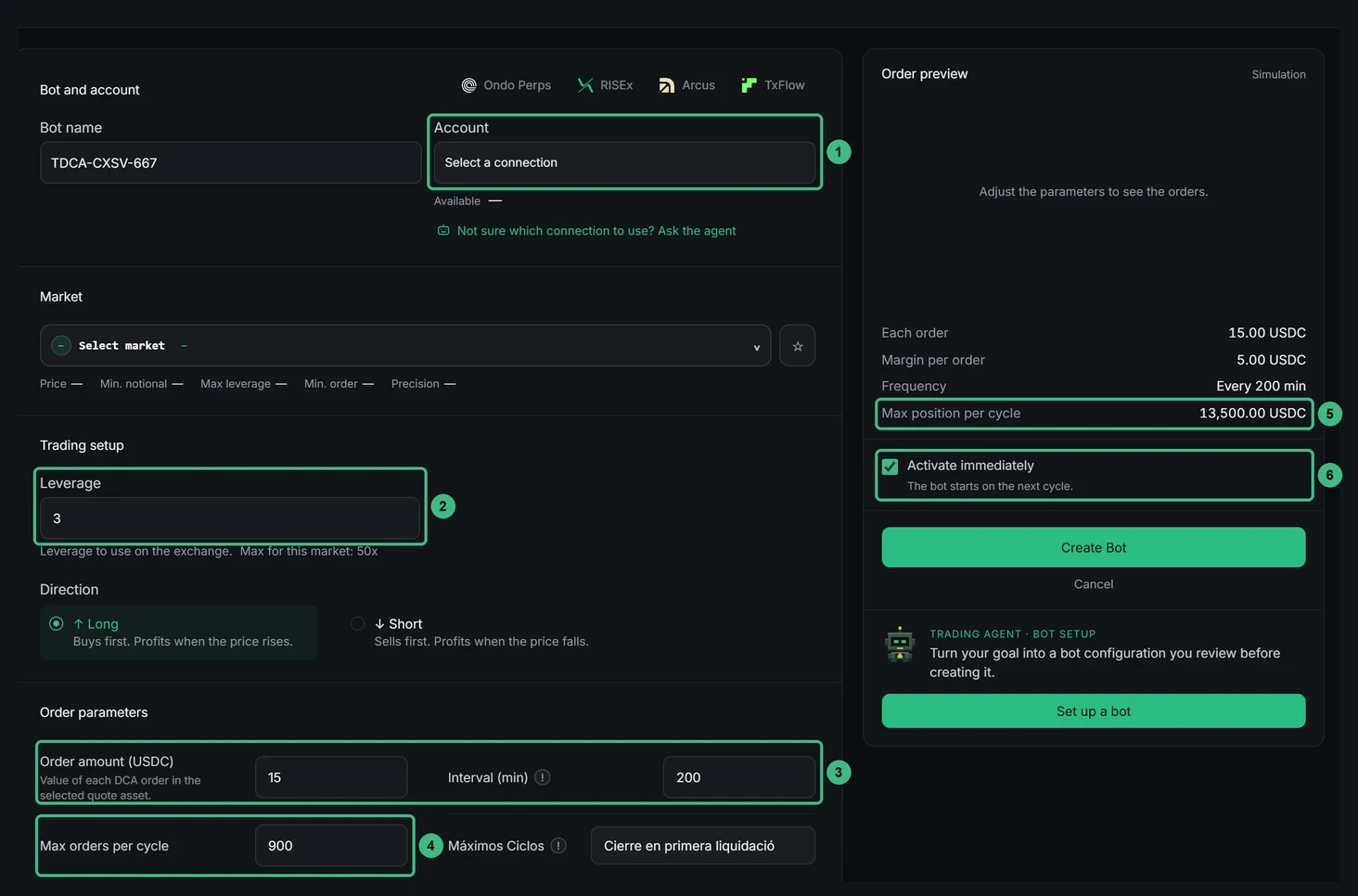
- Choose your exchange connection and market: pick the exchange and the connection that will send the orders and hold the position, then check the market. The market panel lists price, minimum notional, maximum leverage, minimum order and precision, and every order must respect those limits.
- Resize the setup: change the size, range, leverage and margin mode so they fit your own balance. Position value is margin times leverage, so more leverage needs less margin but brings liquidation closer.
- Check the preview: a row flagged with a warning sits under the market's minimum, so that order would be rejected. Raise the investment or leverage, or use fewer levels, until no warning is left.
- Decide how the bot starts: where the bot creator shows the Activate immediately setting, a checked box starts the bot on its next cycle and an unchecked one saves it paused. A copy can arrive with the box already checked, so look before you create the bot.
- Create and check: press Create Bot, or the start button for that strategy, then check the orders on both the bot's detail page and the exchange. They can take a short moment to appear.
In practice, copied amounts are tempting to keep as they are, because they come from a bot whose results you just compared.
Take one TDCA setup copied from the Leaderboard. It arrived with 15.00 USDC per order at 3x leverage and up to 900 orders per cycle. The preview in the bot creator put the maximum position per cycle at 13,500.00 USDC.
On your exchange account, that figure is how far the bot can keep buying before the take-profit closes the cycle. So if your available balance can't cover those planned buys, orders can be rejected for insufficient margin.
That's why the safer move is to lower the TDCA order amount and order cap before you create the bot, until that maximum position is a figure your available balance covers.
Where to find and manage your copied bot
Once created, the copied bot is one of your own bots. It appears in your list of bots with its status, and its detail page shows its orders, position and results. The Trade page also lists its open orders under Bot Orders.
From then on, changes go through Edit, and when you save, the Edit screen lists every setting you changed and asks you to confirm before the change applies. With a position open, MyLiquidBot locks some settings, so it's easier to settle size and leverage before you create the bot than after. The controls for pausing, closing or deleting depend on the strategy, and managing bots sets out which ones only stop automation and which close the position at market.
FAQs about copying Leaderboard bots
Is copy trading on MyLiquidBot profitable?
It depends on your own bot's trades, not the original's. Copying gives you a starting point from a bot whose results you can see on the Leaderboard, which you then adapt to your own account.
Why doesn't my copied bot place orders right away?
Bots work in cycles, so the first orders can take a short moment. A bot also waits while it isn't activated, while a Trigger Condition is pending or until its strategy filters are met.
Can I trade manually on the same pair as my copied bot?
Not on the same exchange account: MyLiquidBot reserves that pair for the bot, even when it's paused, so manual orders can't change its position. You can still trade the pair from another connected account.
Does pausing a copied bot close its position?
No. Pause and a plain Power off keep the position open, while Close position, Unload and Stop and delete close it at market.