
Security
How to Secure API Keys for Crypto Trading Bots and Fix Leaks
You create an API key for your trading bot, switch withdrawals off and paste it in. Job done, your money can't go anywhere.
Not quite. A key that can only trade can still cost you money in the wrong hands, and the key isn't the only way to reach your exchange account. Here's how to set up a bot connection that gives away no more than it needs, and what to do the day a key leaks.
What can someone do with your trading bot's API key?
Someone who holds your trading bot's API key can do everything that key's permissions allow, without your exchange password. An API key is a credential your exchange issues so that software, such as a trading bot, can act on your exchange account. It usually comes with a secret, and anyone who has both can use it.
What that person can do depends on the permissions you switched on when you created the API key. Here's what each permission allows:
- Read: the API key can see balances, positions and orders, but can't change anything.
- Trade: the API key can place and cancel orders with the funds in your exchange account.
- Withdraw: the API key can send funds out of your exchange account to another address.
A trading bot needs read and trade, and never withdraw. Many people stop there, but a trade-only API key can still lose money. A thief who already holds a thinly traded coin can use your key to buy that coin far above its worth, while selling it to you from their own account. Your funds never leave the exchange, yet you end up holding a coin almost nobody wants, and the thief holds what you paid.
This has happened at scale. In December 2022, a leak at the trading-bot platform 3Commas exposed about 100,000 API keys, and some of its users lost funds as a result.
The API key isn't the only route, though. MyLiquidBot is a crypto trading-bot platform that connects to your exchange account and buys and sells for you, following the rules you choose. It saves each exchange account you link as an exchange connection. Anyone who controls your MyLiquidBot account can create orders with your exchange connections, even without withdrawal permissions.
How to create a trade-only API key or use Quick Connect
Give your trading bot a key that can read and trade but can't withdraw. You either create it yourself on the exchange or let Quick Connect create it for you. Which route you take depends on the exchange, so check your exchange's connection type before you create anything.
On Bitunix and Ondo Perps, you create the API key yourself with read and trading permissions only, and you leave withdrawals off. Then open Account → Exchanges in MyLiquidBot, press "Add connection" and choose the exchange. Paste the "API Key" and "Secret Key" for Bitunix, or the "API Key ID" and "API Secret" for Ondo Perps, and press "Save & verify".
Some exchanges use a different kind of credential. Hyperliquid, Aster and RISEx use an API wallet, and TxFlow uses a trading agent: a delegated key that can place orders for your exchange account but can't withdraw. On those four exchanges, and on Lighter, Lighter on Robinhood Chain, Arcus and Papertrade, you can use Quick Connect instead of copying keys. MyLiquidBot creates the trading key and your wallet authorizes it with one signature, with no funds moved and no gas paid.
Pacifica works differently again: an Agent Wallet signs the orders, and MyLiquidBot can generate it during trading activation, with two signatures from your Solana wallet, one to bind the Agent Wallet and one to approve the Builder Fee.
Whichever route you take, your main wallet's private key or seed phrase never goes into MyLiquidBot or any other form.
Two more habits limit what a leaked key can do. Create a separate API key for each bot or service instead of reusing one, so a leak at one service exposes only that key and you can revoke it without stopping anything else. On Ondo Perps, if you use an IP allowlist, ask MyLiquidBot support which IP to allow first, because a list that misses it blocks the bot. With the right IP listed, a copied API key fails from anywhere else.
How to turn on two-factor authentication (2FA) in MyLiquidBot
Turn on 2FA in Account → Security → Two-factor authentication, so that a stolen password alone can't sign in to your MyLiquidBot account. With 2FA, signing in takes your password plus a one-time login code. That matters here because whoever signs in can place orders through every saved connection.
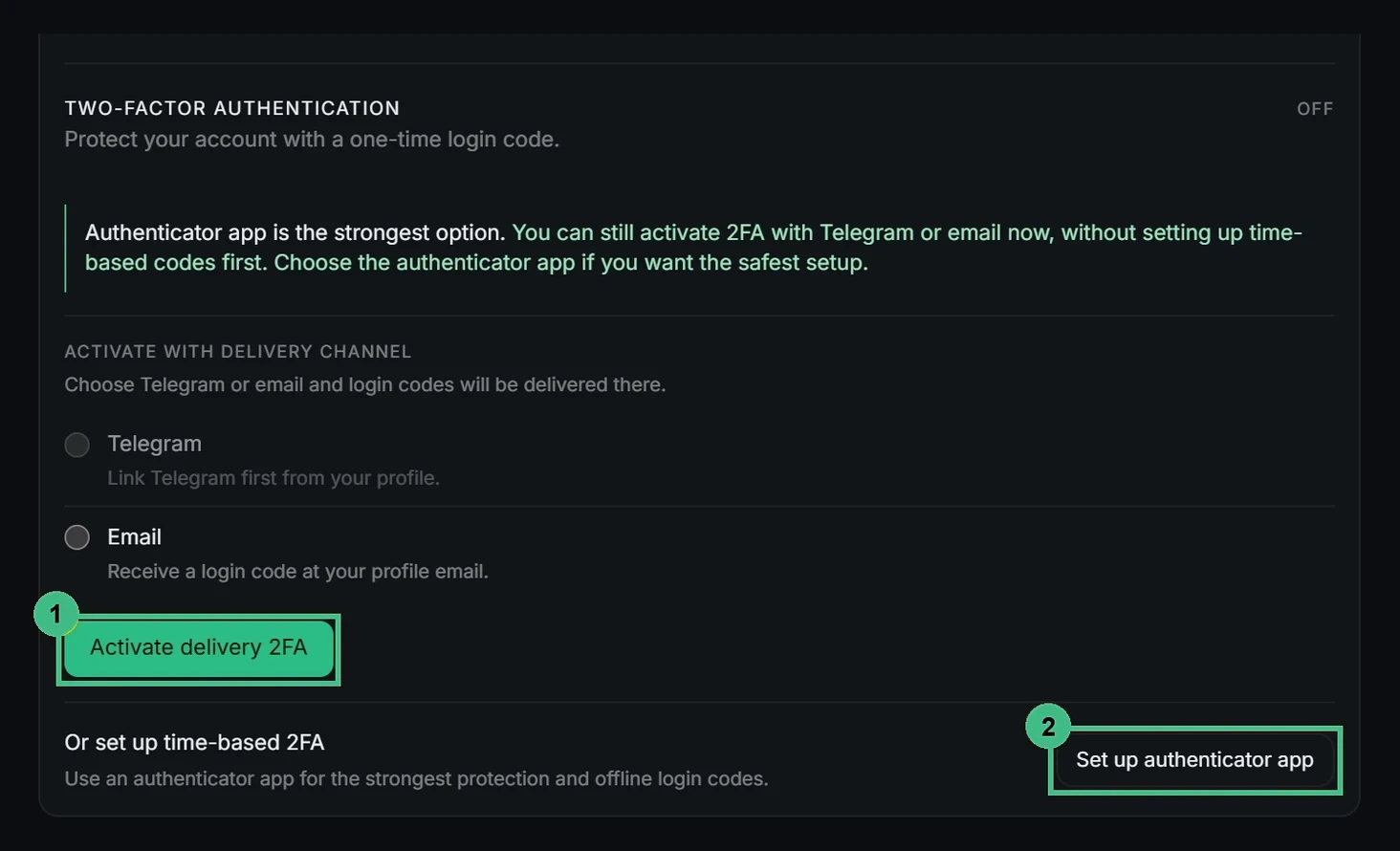
You choose between an authenticator app and delivery 2FA, which sends the 2FA codes by Telegram or email. Pick the authenticator app if you can, because it's the strongest option and its codes work offline. Setting up 2FA goes in this order:
- Under Two-factor authentication, choose "Set up authenticator app" or "Activate delivery 2FA".
- For the authenticator app, reveal the QR code or setup key, scan it and enter the first 2FA code in "Confirm 2FA". For delivery 2FA, enter the code sent to your Telegram or email and press "Confirm": the change is only saved once the code is right.
- Save the recovery codes offline, because each recovery code works once if you lose your 2FA method.
A lost phone is the case those recovery codes are for. You sign in with a recovery code and set up 2FA again. Without recovery codes, you have to contact support from your MyLiquidBot account email. For the same reason, keep at least two sign-in methods linked (email and password, Google or a crypto wallet), so losing one doesn't lock you out.
How to keep API keys and passwords out of chats and code
Never paste an API secret, private key, seed phrase, password, 2FA code or recovery code into a chat, and hide them in any screenshot or text you share. On MyLiquidBot the rule is easy to keep, because nobody there needs them. Support, the Trading Agent (the assistant inside MyLiquidBot) and the Telegram bot never ask for private keys, seed phrases, passwords or 2FA codes. So a message that does ask for one isn't coming from them, however official it looks.
When you need help with an exchange connection, give support its name, never the API keys. In the Telegram support group, add the exchange, the exact message you saw and a screenshot with the API keys hidden.
One more secret is easy to overlook. When you link the Telegram bot to your MyLiquidBot account, the bot replies with a Telegram login link that expires after 15 minutes and works only once. Treat that link like a password: don't share it, and keep it out of screenshots.
The same care applies outside MyLiquidBot. Fake platforms copy the look of a real site to collect API keys, so check the address before you paste anything. Keep API secrets in a password manager rather than a plain text file. If you write your own scripts, keep the API secret out of the code itself, because anyone can read a key committed to a public repository.
How to replace an exposed or expired API key
Replace an API key as soon as you suspect it was exposed, when you see trades you didn't place, or when it expires. Here's how to replace an API key safely:
- Pause the bots that use the exchange connection, so they don't trade through a half-changed connection.
- Revoke the old API key on the exchange, so a leaked copy stops working at once.
- Create the new API key or API wallet on the exchange, with trading permissions only.
- Edit the existing connection in MyLiquidBot, enter the new credentials and save it.
- Reactivate trading if the "Manage" panel asks for it.
- Resume the bots after the exchange connection verifies.
With Quick Connect on Hyperliquid, Aster, RISEx, Arcus, TxFlow or Papertrade, steps 3 and 4 are a single signature: renew or authorize the key again from "Manage", and the new key replaces the previous one of that connection.
On exchanges that use a platform fee approval, replacing an API wallet or Agent Wallet can mean approving the platform fee again. That approval moves no funds and never allows withdrawals.
Some keys expire on their own schedule, and the exchange connection stops trading when they do. For Hyperliquid, Aster, RISEx and Arcus keys, MyLiquidBot warns you 14, 7 and 1 day before:
| Key | How long it lasts | What you do |
|---|---|---|
| Hyperliquid API wallet | 179 days with Quick Connect; with your own API wallet, the validity period you set on Hyperliquid | Renew it in "Manage" → API wallet with another signature, or create a new API wallet and edit the connection |
| Aster API wallet | 179 days with Quick Connect | Renew it in "Manage" → API wallet with another signature |
| RISEx API Wallet | 180 days with Quick Connect | Renew it in "Manage" → API wallet with another signature |
| Arcus API key | Up to 180 days | Renew in the "Manage" panel after MyLiquidBot's warning |
| Papertrade session key | 30 days | Renew in the "Manage" panel with another signature |
Keys that never expire need the same attention, because an API key you forgot about can still be used. Delete API keys you no longer use, and rotate the ones you keep from time to time.
FAQs about securing API keys for crypto trading bots
Can MyLiquidBot withdraw my funds?
No, MyLiquidBot can't withdraw your funds, which stay on the exchange. With trading-only credentials it can place and cancel orders but can't send funds to another address, so if your exchange lets you enable withdrawals on an API key, keep them off.
Does approving the platform fee give MyLiquidBot withdrawal access?
No, approving the platform fee lets the exchange attribute your trades to MyLiquidBot and charge that fee, but it isn't a transfer, a deposit or a withdrawal permission. It applies only on exchanges that use a Builder Fee or Integrator Fee, which are two names for the same platform fee, so Bitunix, Ondo Perps, Arcus and Papertrade don't ask for it.
Can I share MyLiquidBot's guides with an AI assistant?
Yes, you can share MyLiquidBot's AI assistant guide with an AI assistant so it can guide you step by step. Never give the AI assistant keys, secrets, passwords or 2FA codes.