
Bots
MyLiquidBot Trading Agent: Can It Trade for You?
Can an AI agent run your crypto trading while you get on with your day? That's what the word "agent" seems to promise, and it's a fair thing to expect.
The MyLiquidBot Trading Agent does a good share of the work for you, but it leaves one move in your hands, and that's deliberate. Keep reading to see how far it goes and why the part it hands back to you keeps you in control.
What is the MyLiquidBot Trading Agent?
The Trading Agent is the assistant inside MyLiquidBot that helps you configure bots, analyze ideas and compare strategies. It also includes backtests and market tools, so you can test a setup and look at the market in the same place.
The name can set the wrong expectation. In AI, an "agent" usually means software that takes actions toward a goal on its own, so you might expect this one to open and close trades for you. It doesn't.
The Trading Agent drafts, explains and tests, and you create the bot. Once you create a bot, that bot places the orders, following the settings you approved.
Once you're signed in, you can open the Trading Agent from the places where questions tend to come up:
- Top navigation: the Trading Agent page holds the chats, the backtests and the market tools.
- Trade: a draggable Trading Agent mascot sits in a corner and opens the support chat when pressed.
- Bot creator and connection forms: the Trading Agent sits in the side panel, so you ask without leaving the page.
- Bot creator, account step: the "Ask the agent" link helps when you aren't sure which exchange connection to use.
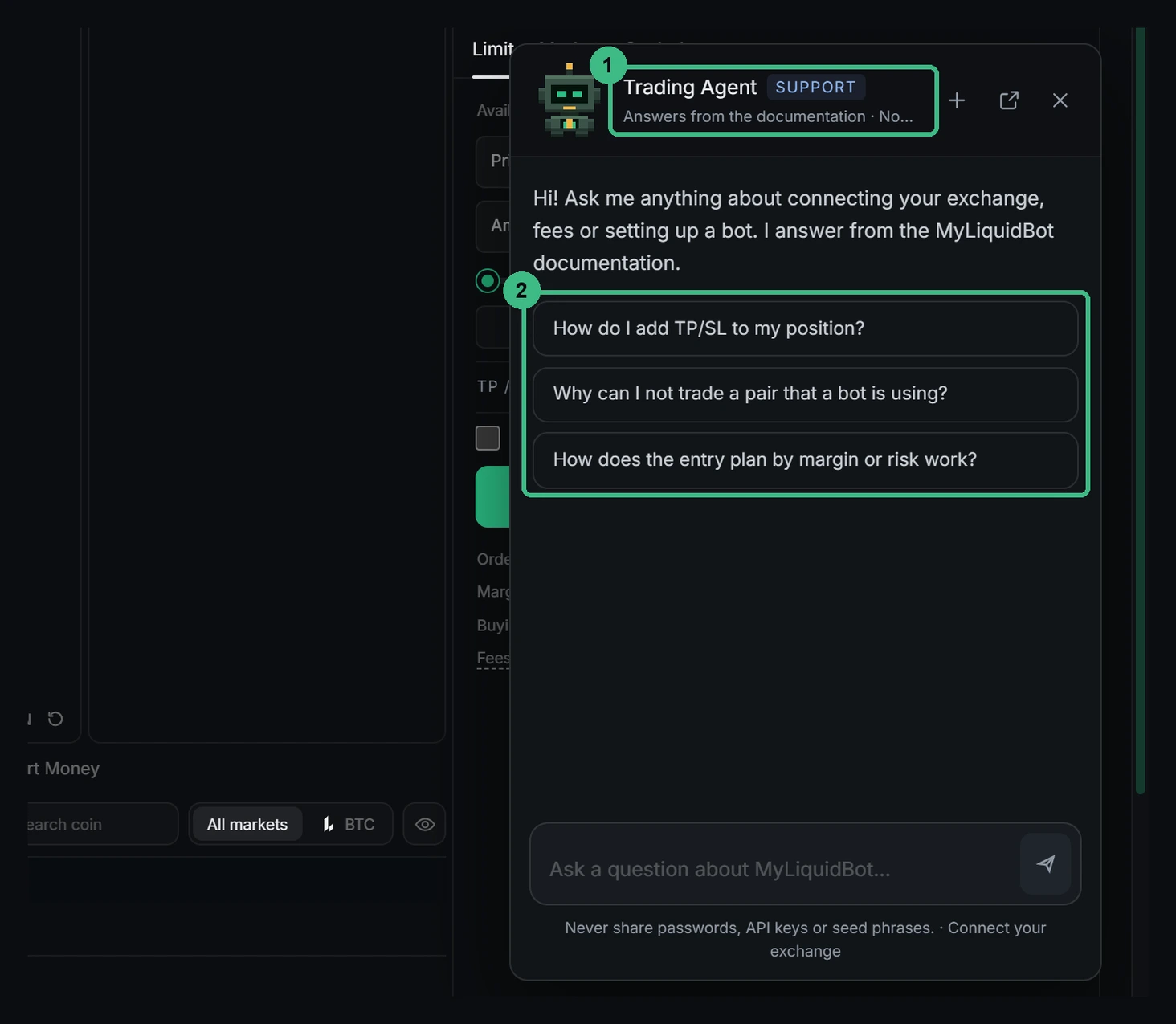
On Trade, the support chat starts with suggested questions such as "How do I add TP/SL to my position?". TP/SL is the take profit and stop loss that close a position when price reaches a level you set.
What does the Trading Agent need for full access?
The Trading Agent needs one exchange connection that is ready for trading before it gives you full access. A connection is an exchange account saved in MyLiquidBot with trading-only credentials, and saving it isn't enough. It's ready for trading once it passes verification and you've completed trading activation, both of which you handle in the Exchanges section of your MyLiquidBot account.
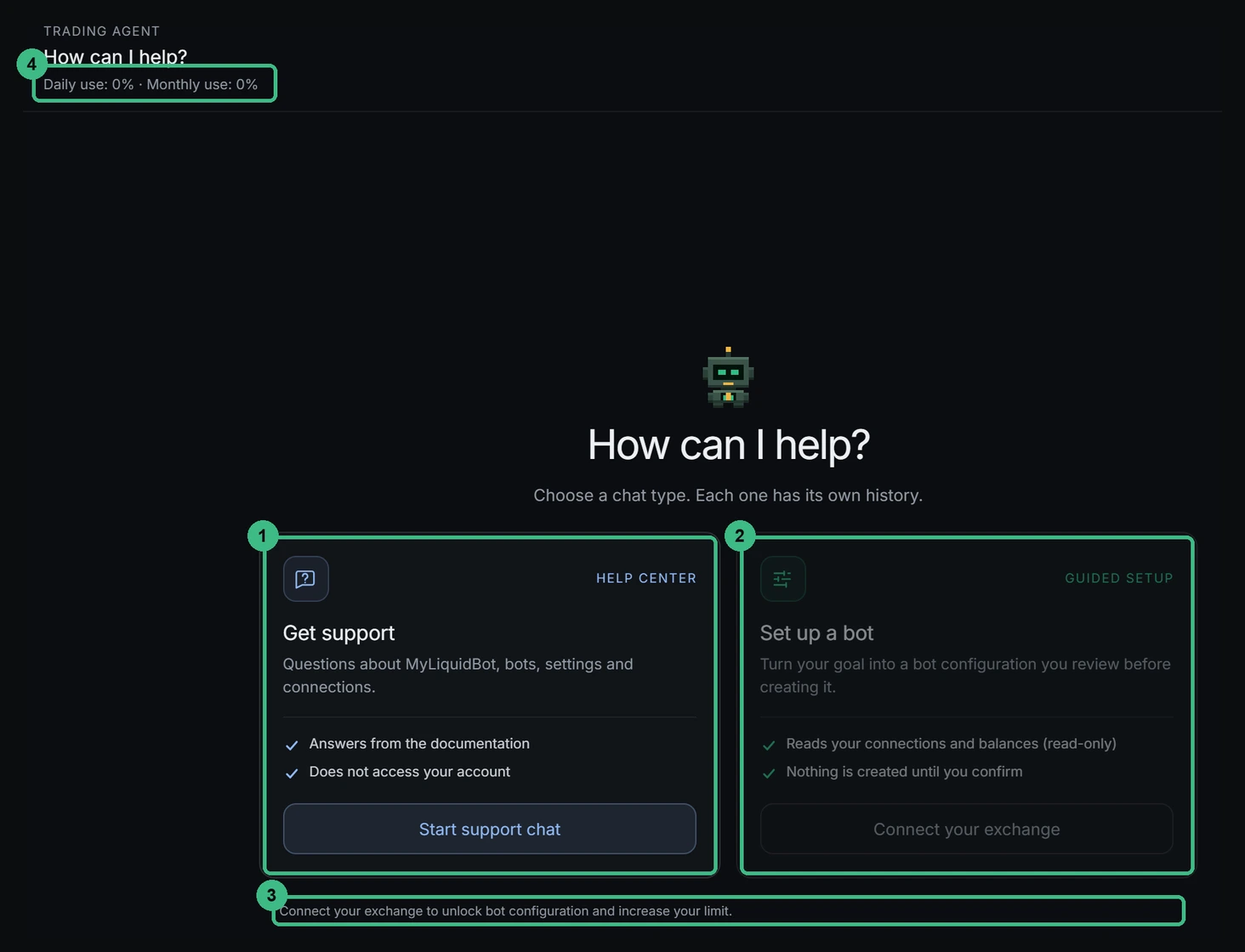
That's the same condition every bot has, because you can't create a bot without an active connection with trading activation completed. Until then, the Trading Agent page shows "Connect your exchange", guided bot setup stays locked, and the support chat still works. Usage is also metered: the page shows "Daily use" and "Monthly use" as percentages, and connecting your exchange increases your limit.
How do support chat and guided bot setup differ in the Trading Agent?
The support chat answers from the documentation and doesn't access your MyLiquidBot account, while guided bot setup reads your exchange connections and balances and prepares a bot configuration for you. The start screen of the Trading Agent page puts the two side by side as cards, "Get support" and "Set up a bot", and asks you to choose a chat type. Each one has its own history, so a setup conversation doesn't get mixed in with your help questions.
What does the support chat answer?
The support chat answers questions about MyLiquidBot, bots, settings and exchange connections, using the documentation. It works before any exchange connection is ready for trading, which makes it the place to ask how a setting behaves, what a fee is, or what an error message means.
Because it has no access to your MyLiquidBot account, it can't look up your balance or your bot. So give it the details: the exchange, the bot type and the exact error message as MyLiquidBot shows it. If the answer still doesn't solve the problem, write in the Telegram support group with the exchange, the connection or bot name, the exact message and a screenshot with API keys hidden.
What does guided bot setup do?
Guided bot setup turns your goal into a bot configuration that you review before creating it. You describe what you want, and the Trading Agent compares the supported bots, uses market context and prepares an editable configuration.
To do that, it reads your exchange connections and balances, and that access is read-only, which means it can look at them and can't change them. Then it stops, because nothing is created or activated until you confirm. A wrong number in a draft costs you nothing. The same number in a running bot becomes real orders in your exchange account, which is why the Trading Agent leaves that step to you.
How to set up a bot with the Trading Agent
You need an exchange connection that is ready for trading first. Here's how to set up a bot with the Trading Agent:
- Open the Trading Agent page and choose "Set up a bot".
- Describe your goal in plain words, so the Trading Agent can propose a configuration.
- Compare the bots it suggests and ask for changes until the configuration fits your goal.
- Review the configuration in the bot creator, value by value.
- Create the bot yourself when every value is what you intend.
A useful goal names what any bot needs: the market, the direction you expect and how much you're willing to commit. In the bot creator, check the leverage and the total investment, then read the preview. Any row marked with a warning is below the market minimum and the exchange would reject it. For a first bot, start with a small amount and 1× to 2× leverage.
Check how the bot creator starts the bot, too. The form ends with a button that reads Start and the name of the bot, such as "Start GridBot Advanced", and pressing it creates the bot and starts it. Where the form shows "Activate immediately", leaving the box unchecked changes the button to "Create … paused" and saves the bot paused. After that, confirm the orders on the bot page and on the exchange.
How do backtests and market tools in the Trading Agent differ?
Backtests replay one bot strategy with your settings on past prices, while the market tools show live market data with no bot settings involved. Use a backtest to question a configuration, and the market tools to decide which market to build one for.
How do Trading Agent backtests work?
A Trading Agent backtest simulates GridBot Advanced or TDCA on historical candles from Hyperliquid or Lighter, and it doesn't touch your live bots or exchange orders. A candle is the summary of price over one period, and you can pick a timeframe from 1 minute to 1 day. You fill in the lab and press "Queue backtest" for GridBot Advanced or "Queue TDCA backtest" for TDCA, and the run is processed in the background. A GridBot Advanced run page then shows fills, PnL and drawdown.
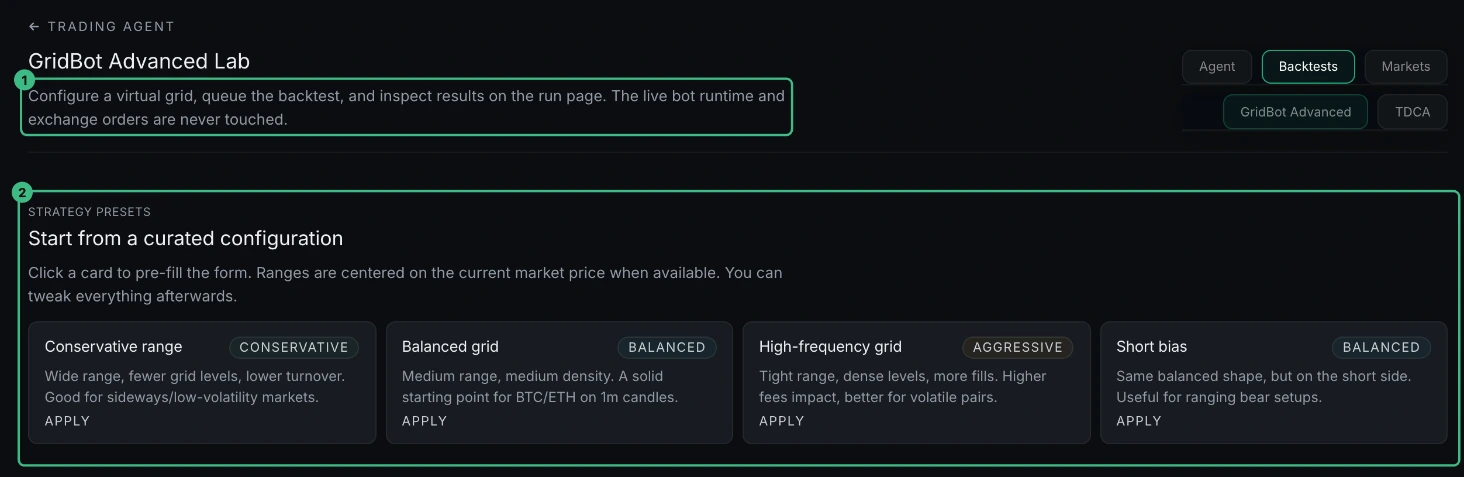
The GridBot Advanced Lab opens with preset cards such as "Balanced grid" that pre-fill the settings. Then it asks for the exchange, symbol, timeframe, price range, grid levels, investment, fee and slippage. A live preview draws your grid lines over real candles before you queue anything.
If you request a longer range, the GridBot Advanced backtest uses only the latest 1,440 candles for that timeframe. On 1-minute candles that's 24 hours of history, and on 1-hour candles it's 60 days, so pick the timeframe by how much history you want the test to cover.
A backtest tells you what those settings would have done on those candles, not what a live bot will do next. The TDCA simulation, for example, uses candle close prices, and a live order can fill at a different price.
What do the Trading Agent market tools show?
The Trading Agent market tools show where a market stands before you choose a strategy for it:
- Market Structure: maps live support and resistance on recent candles, ranks the levels by score and marks recent bounce zones.
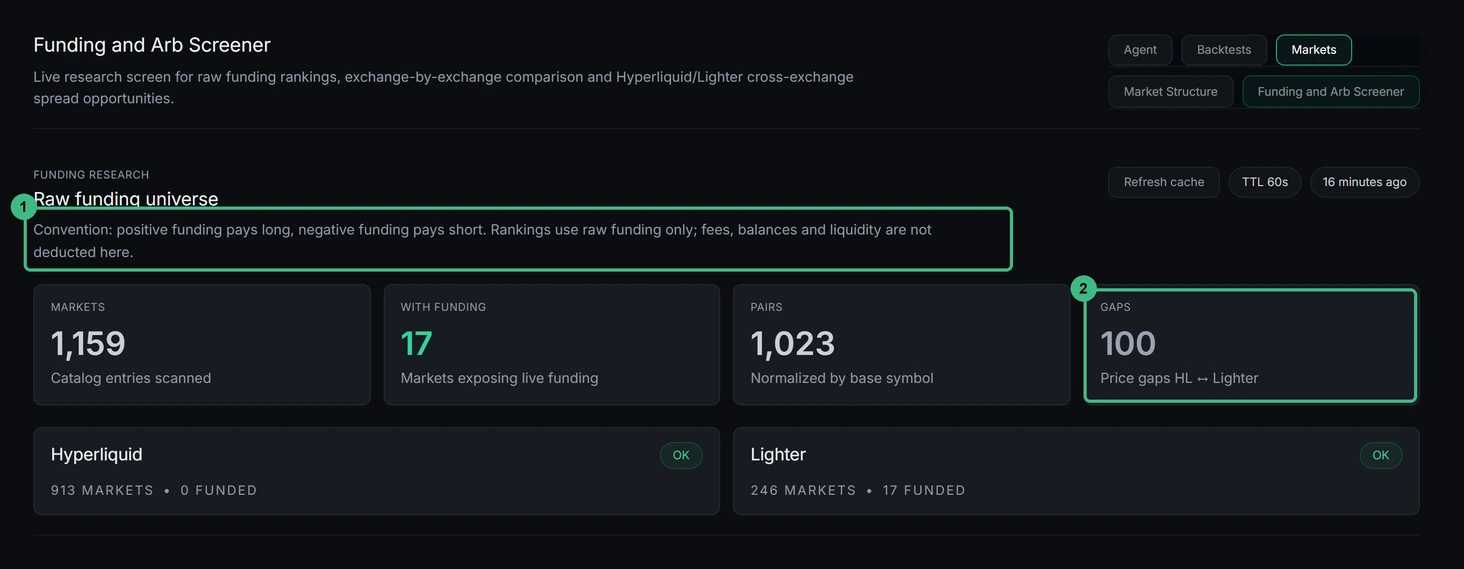
- Funding and Arb Screener: ranks markets by raw funding, compares Hyperliquid and Lighter pair by pair and lists price gaps.
Support and resistance are price zones where falls or rises have repeatedly stalled. Funding is the periodic payment that passes between long and short holders of a perpetual contract, and collecting it with two opposite positions is the idea behind funding rate arbitrage.
The Funding and Arb Screener's rankings use raw funding only: fees, balances and liquidity are not deducted. So the pair at the top of the table isn't a net result, because opening and closing costs come out of it and a displayed funding rate can change before the next payment. Treat the screener as a filter. Before you configure a Delta Neutral Arbitrage bot, review the current gap, funding direction, opening fees and liquidity for that pair.
What are the limits and risks of the Trading Agent?
The Trading Agent doesn't create or activate a bot, so no bot starts trading until you confirm it. That limit works as a safeguard, and it also defines your part: the configuration is a draft, and you're the one who checks it. The Trading Agent's suggestions are information, not financial advice, and a bot you create can lose money when the market moves against its settings.
Never paste API keys, private keys, seed phrases, passwords, 2FA codes or recovery codes into any chat. Nobody needs them to help you. That rule is part of basic MyLiquidBot account security: support, the Trading Agent and the Telegram bot never ask for private keys, seed phrases, passwords or 2FA codes.
How is the Trading Agent different from an outside AI assistant?
The Trading Agent works inside MyLiquidBot. Once you're signed in with an exchange connection ready for trading, guided bot setup reads your connections and balances and prepares a configuration you review in the bot creator. The Trading Agent also runs the backtests and the market tools. An outside AI assistant such as ChatGPT, Claude or Gemini works from the documentation you share with it and has no connection to your MyLiquidBot account.
If you'd like an outside assistant to walk you through the documentation, point it to the AI assistant guide first. The guide tells the assistant to base its answers on the documentation and to ask you for the exact error message. It also sets a fixed order for diagnosis, from account access to live orders, and has the assistant suggest the Telegram support group when something isn't covered. For a configuration built on your own exchange connections and balances, and for backtests on Hyperliquid or Lighter candles, the Trading Agent is the tool that has them.
FAQs about the MyLiquidBot Trading Agent
Can I use an AI agent to trade crypto on MyLiquidBot?
Partly: the MyLiquidBot Trading Agent prepares and tests a bot configuration, and the bot you create from it places the trades by the settings you chose. The Trading Agent itself doesn't create or activate a bot.
Can the Trading Agent help if I'm new to MyLiquidBot?
Yes, the support chat works before any exchange connection is ready for trading and answers questions about MyLiquidBot, bots, settings and exchange connections from the documentation. Once you're signed in, the support chat on the documentation pages suggests starter questions such as "Where do I start if I am new?".
Do I need to approve a fee to set up a bot with the Trading Agent?
Only on exchanges that use a Builder Fee or Integrator Fee, two names for approving the MyLiquidBot platform fee: there, trading activation includes a fee-approval wallet signature that moves no funds and never allows withdrawals. Bitunix, Ondo Perps and Arcus have no such signature.